

How do I activate the connection to Abacus Financial Accounting?
Connecting AbaNinja to Abacus Financial Accounting makes collaboration with your fiduciary efficient. Customer invoices, credit notes, supplier invoices, payments and manual entries are immediately transferred to Abacus Financial Accounting and can be automatically booked there - saving both the AbaNinja user and the fiduciary a lot of time. The original receipts are electronically signed and are also stored in the Abacus client.
Learn step by step how to connect AbaNinja to Abacus Financial Accounting.
Information
This connection means that AbaNinja's automated accounting remains active, but Abacus Financial Accounting becomes the leading accounting system.
This is not a two-way synchronization, but documents such as customer or supplier invoices are transferred to the AbaScan inbox. For the processing of the documents from this inbox into the Abacus program F11, update proposals can be created based on the chart of accounts in Abacus and the AbaNinja product numbers. It is therefore not necessary to import an account plan from Abacus into AbaNinja or to adapt it in AbaNinja..
Requirements
To be able to connect AbaNinja to Abacus Financial Accounting, the following requirements apply:
Your fiduciary either has Abacus software or is an AbaWeb provider.
Connect to one of the supported Abacus versions (usually the 3 most recent, e.g. 2025, 2024 & 2023).
- Furthermore, it is recommended that the latest Abacus updates are installed if possible.
For the connection, an SaaS user (also called AbaWeb user) with a corresponding AbaNinja subscription is required. This user can be created in the Q981 User Management menu and must have sufficient rights for the AbaScan Inbox.
- In most cases, a customer already works with such a user and already has access to Abacus Financial Accounting via AbaWeb. In these cases, there is no need to create a new user.
The Abacus client must be registered in the AbaSky portal and have a corresponding AmID.
The Abacus client's VAT liability matches the AbaNinja account.
Abacus client
It is possible to establish the connection with an existing Abacus client. However, we also offer pre-configured sample clients for download. These clients settle either according to agreed or collected VAT method.
More information: Is there a standard / sample Abacus SME client for AbaNinja?
Prerequisites Abacus client
- In program F621 Application Settings, under Financial accounting > General > Settings, the document number must be set to alphanumeric (remove flag at "numeric").
- In program F621 Application Settings the "Amount 0.00 allowed" must be set under Financial accounting > Entry> Settings > Key currency.
- In the F6312 Company program, "Leave VAT unrounded" must be entered under tax numbers.
Activate "AbaNinja" menu for the Abacus software
In order to import the documents into the AbaScan inbox and to store update suggestions in the program F621 Application Settings, the following entry is required in the Abacus Service Manager / Configurator:
- Menu item = AbaSystemProperties
- Key = EnableAbaNinjaJob
- Value = true
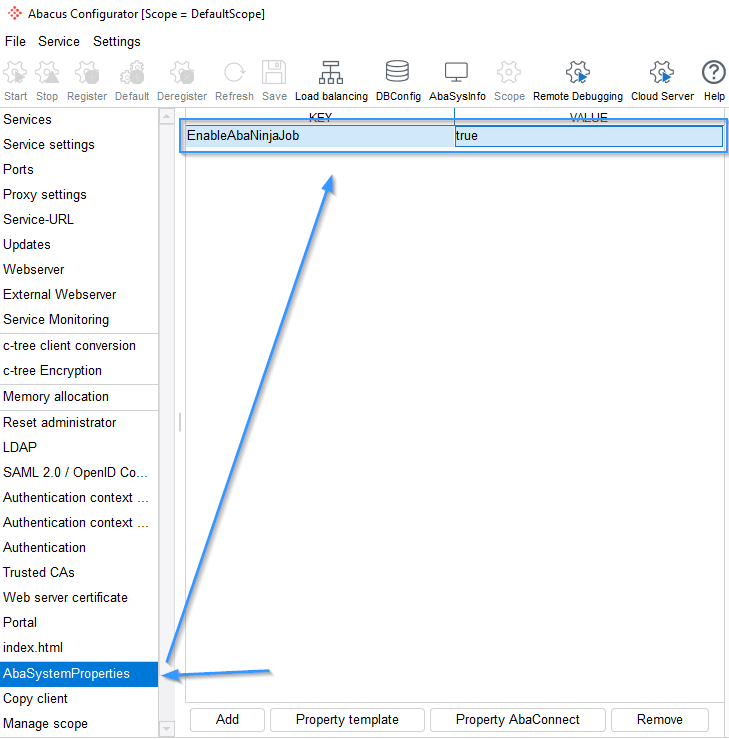
Attention: This entry can only be made by someone who has access to the Abacus server. In most cases, this is an administrator or the sales partner.
Basically we recommend to restart the service "AbaProcessEngine" after this entry.
Attention: This entry is no longer relevant starting from v2022
Then check whether the AbaNinja (starting from v2022 = Cloud Systems) menu item is displayed in the F621 Application Settings program under Abacus Toolkit.
Make a connection
- To connect to Abacus Financial Accounting, go to AbaNinja Settings > Company > Subscription and add-on modules > Abacus Financial Accounting.
- Enter the AmID of your Abacus client.
- Select a date from which the data (invoices, payments, bookings) should be transferred from AbaNinja to Abacus.
- Optionally, you can choose whether data that has already been submitted should be submitted again.
- Used for new connections, for example, when the connection was interrupted..
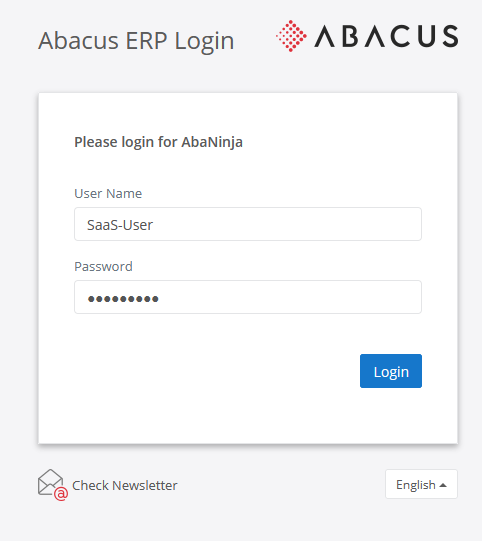
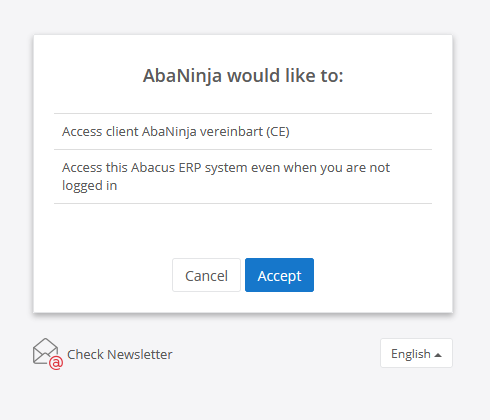
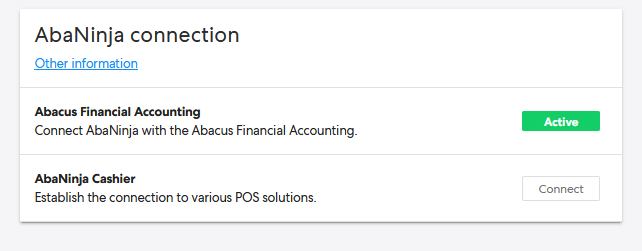
- Log in with the SaaS user (AbaWeb user) and enable access. At the end, you should see the connection in Active status.
- In practice, it often happens that instead of this SaaS user, the administrator or another user is used to connect. In this case, the documents are transmitted, but do not reach the AbaScan Inbox, but remain in program Q929 Processing Status with status Failed. In such a case, the connection must be disconnected and recreated.
Checklists
- SaaS-user (AbaWeb-user):
- Either already exists or must be created in Q981 Abacus User Administration program.
- Must have access to the AbaScan inbox.
- The password must not be alterable.
- Must be registered in the AbaSky-Portal.
- Requires a G/L subscription in the AbaSky portal (G/L 1 or higher).
- No other user (administrator, supervisor, etc.) may be used for the connection.
- Abacus Client:
- Most current Version and Updates.
- AbaNinja entry AbaSystemProperties is present in Abacus Service Manager / Configurator.
- (This entry is no longer relevant starting from v2022)
- The document number is set alphanumerically (remove flag at "numeric") (program F621 Application settings).
- The amount 0.00 is allowed (program F621 Application Settings).
- The "VAT is left unrounded" (program F6312 Company).
- The Abacus client's VAT liability matches the AbaNinja account.
- Must be registered in the AbaSky portal and have a corresponding AmID.
- Set up the connection: "Settings > Company > Subscription and add-on modules > AbaNinja connections > Abacus Financial Accounting".
Transmission
The documents and manual entries created in AbaNinja are automatically transferred to Abacus as soon as a connection is established. For example, as soon as you send or print a customer invoice or it is assigned the status "Sent", it will be transmitted to the AbaScan Inbox. The same applies to supplier invoices or payments.
Manual entries made in AbaNinja on the account statement or journal are only transferred to Abacus once the "Complete entry" action has been executed or the financial year has been closed.

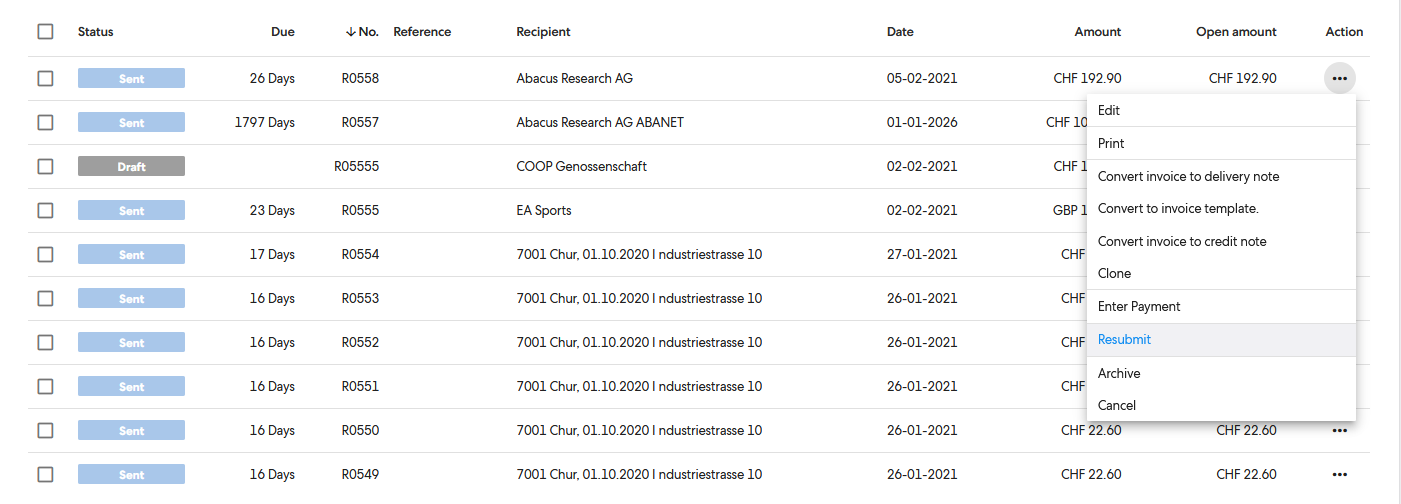
Sometimes, for various reasons, a document is not transmitted or is not visible in the AbaScan Inbox. In AbaNinja, the transmission can be manually triggered with "Resubmit" per document via the "Action" column.
Video tutorial
The following video provides step-by-step instructions on how to connect AbaNinja to Abacus.
Important: The connection for Abacus financial accounting can now be found under Settings > Company > Subscription and additional modules > Abacus Financial Accounting
Webinar Abacus Connection
We regularly offer interested parties a webinar on Abacus connection and processing. This webinar is mainly aimed at fiduciaries and customers with an AbaWeb subscription.
Further information: www.swiss21.org/webinare