What problems can arise during processing in Abacus Financial Accounting and how can they be solved?
If you encounter problems with the AbaNinja-Abacus connection or with the transfer of documents from AbaNinja to the AbaScan inbox, please check the following points carefully.
Are there no documents in the AbaScan inbox?
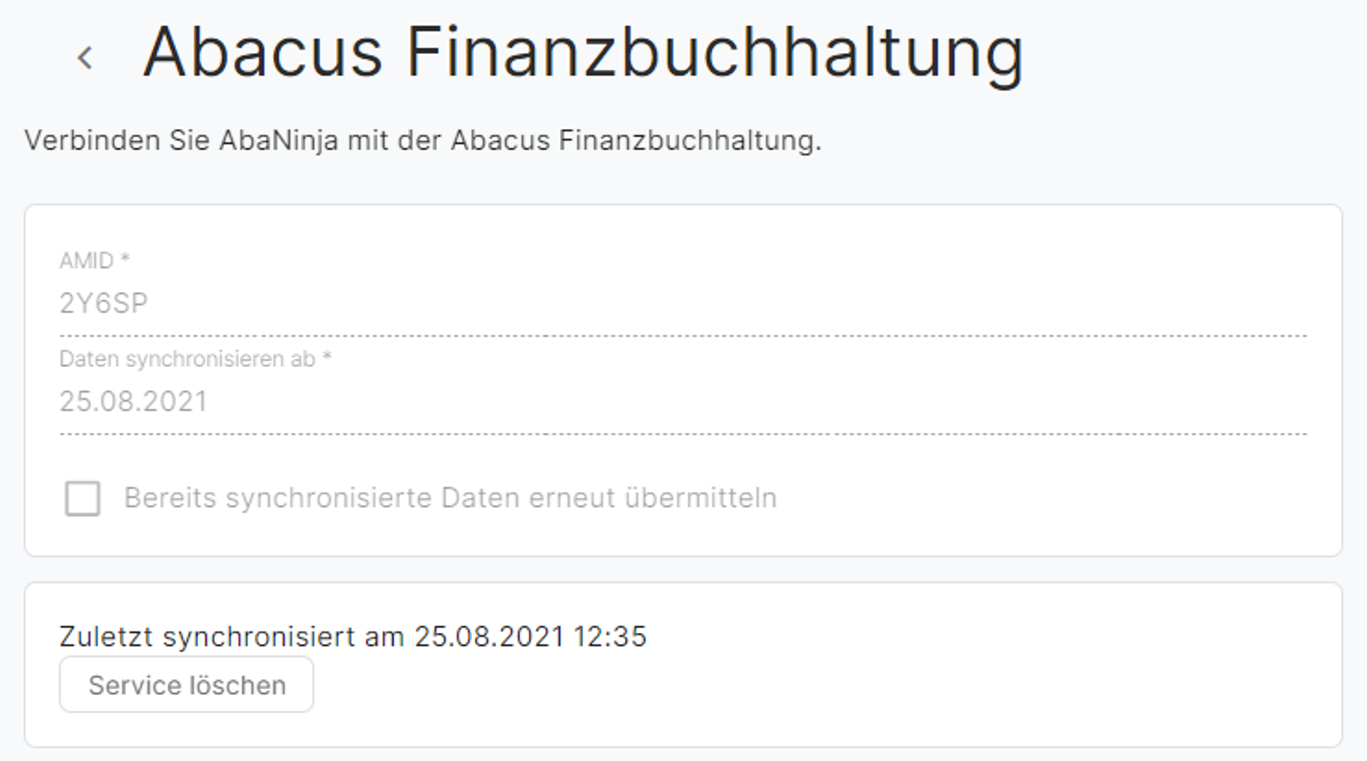
Check in AbaNinja under Settings > Company > Subscription and additional modules > AbaNinja connections whether the connection to Abacus financial accounting is active.
Solution 1:
If the connection is not active, it must first be created or re-established. Please follow these instructions: Wie aktiviere ich die Anbindung an die Abacus Finanzbuchhaltung?
Solution 2:
In practice, it often happens that an update (new Abacus version, installation of a service pack) has been carried out on the Abacus installation. This can result in the desired client no longer being accessible or the connection being disrupted.
In AbaNinja, under Settings > Company > Subscription and additional modules > AbaNinja connections, disconnect (Delete service) and reconnect.
Solution 3:
In practice, it often happens that the wrong user (administrator or a trustee user) is used for the connection instead of the SaaS user. In this case, the documents are transmitted but do not reach the AbaScan inbox; instead, they remain in the Q929 Processing Status program with the status Failed.
To check this, see if there are any entries in the Abacus Q929 Processing Status program.
Check the column “User”. Does it display the name of a user who is not the intended SaaS user?
In AbaNinja, under Settings > Company > Subscription and Additional Modules > AbaNinja Connections, disconnect (Delete Service) and reconnect. Make sure you log in with the SaaS user's login details.
Solution 4:
If entries with the status “Pending” are displayed in the program Q929 Processing Status, then the “AbaNinja” menu must be activated for the Abacus software. This requires a so-called AbaSystemProperties entry in the Abacus Service Manager / Configurator.
Attention: This entry is no longer relevant as of v2022.
Weitere Informationen hierzu: Wie aktiviere ich die Anbindung an die Abacus Finanzbuchhaltung?
The Abacus connection cannot be established in AbaNinja?
In practice, it often happens that an update (new Abacus version, installation of a service pack) has been carried out on the Abacus installation. This can result in the desired client no longer being accessible or the corresponding AmID having changed.
It is also possible that an intermediate certificate is missing on the Abacus server or that external access is blocked.
Solution:
In such cases, please contact your trustee or Abacus sales partner, or ask them to contact AbaWeb Support to check the Abacus installation or registration in the AbaSky portal.
The “AbaNinja” menu is missing in the F621 application settings program?
This requires a so-called AbaSystemProperties entry in the Abacus Service Manager / Configurator.
Please note: This entry is no longer relevant as of v2022, and the name of the menu has been changed from AbaNinja to Cloud Systems.
Further information on this topic:Wie aktiviere ich die Anbindung an die Abacus Finanzbuchhaltung?
The documents cannot be deleted from the AbaScan inbox?
Please refer to the following articles for more information:
- Wie kann ich einen Beleg aus der Inbox löschen?
- Wie verschiebe ich Belege in der Abacus Inbox in den Papierkorb?
Documents cannot be processed from the AbaScan Inbox?
There can be many different problems when processing AbaNinja documents from the AbaScan Inbox. In most cases, the settings in Abacus have been configured incorrectly or incorrect account suggestions have been stored.
Below, we list the most common causes of processing problems and how they can be resolved.
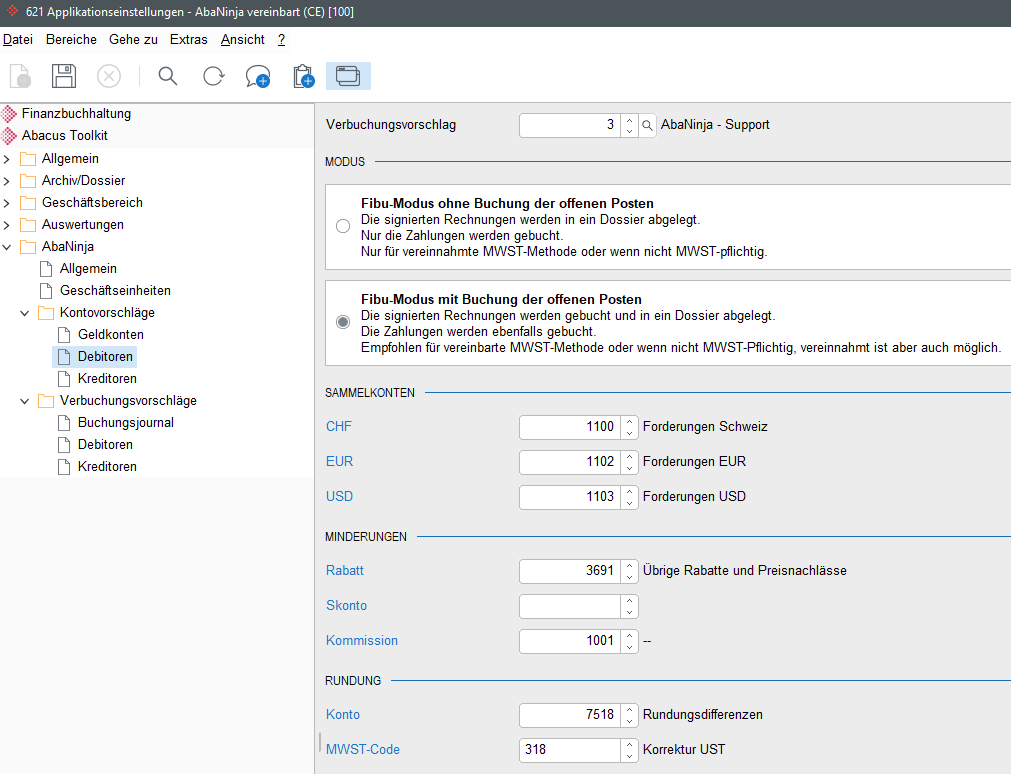
When a document is processed for the first time, a wizard is launched that guides you step by step through the individual settings. All configurations and settings are stored in the application settings F621, where they can be checked or changed at any time.

Further information: Wie können Dokumente aus 21.AbaNinja in der Abacus Finanzbuchhaltung (Inbox) verarbeitet werden?
When creating the business unit, you can choose whether only payments (without open items) or invoices & payments (with open items) from the AbaScan Inbox should be processed in the future.

Further information: Wie kann ich in der Abacus Finanzbuchhaltung wählen, ob nur Zahlungen oder Rechnungen und Zahlungen verbucht werden sollen?
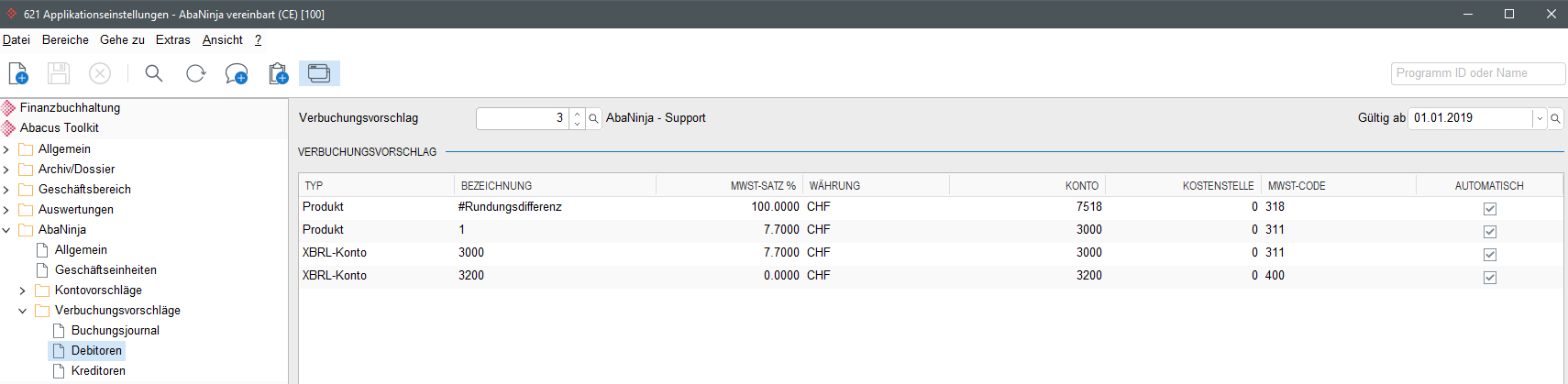
Automatic processing in Abacus always requires a unique assignment criterion:
- Debitors/customers: Product number (accounting account for imported invoices)
- Vendors/suppliers: Accounting account
If this is not the case for a product or accounting account in a document, this proposal must first be entered. For a product/account, one posting proposal can be entered for each VAT rate.
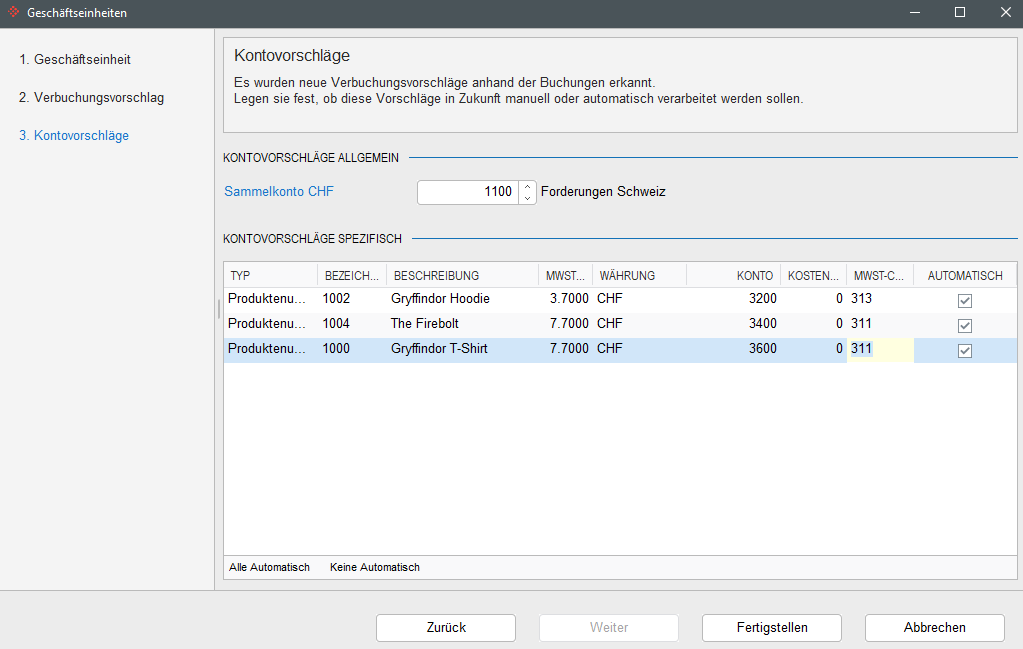
Further information: Wie können Dokumente aus 21.AbaNinja in der Abacus Finanzbuchhaltung (Inbox) verarbeitet werden?
Check in the Abacus program F621 Application Settings whether the correct collective accounts are stored.
Check the corresponding accounting account in the account master to ensure that it has been entered correctly (accounts receivable, accounts payable, general?).
Please ensure that:
- In program F621 Application Settings under Financial Accounting > General > Settings, the document number is set to alphanumeric (remove the flag for “numeric”).
- In the program F621 Application Settings under Financial Accounting > Posting > Settings > Lead Currency, “Amount 0.00 allowed” has been set.
- In the program F6312 Company under Tax Numbers, “Leave VAT unrounded” has been set.
Are only some documents missing from the Abacus AbaScan Inbox?
It can happen that documents from AbaNinja are displayed in the AbaScan Inbox, but the number is not complete as expected.
Solutions:
In this case, the following should be checked:
- Which date was selected in AbaNinja under “Synchronize data from”?
- Was the option “Resend already synchronized data” activated?
- This is relevant if an Abacus connection already existed and was recreated.

- Check which mode you have selected in Abacus in program F621 under Abacus Toolkit > AbaNinja > Account suggestions > Creditors and debtors.
- If a specific document is missing from your inbox, check the following in AbaNinja: Click on the three dots (°°°) in the Action column for the relevant document and check the selection list.

Send = This document has not yet been sent to Abacus. Select this option and check whether the document now arrives in the inbox.
Resend = This document has already been sent to Abacus. Select this option and check whether the document now arrives in the inbox.
- Is the connection to Abacus still active in AbaNinja?
- Can the connection be re-established in AbaNinja?
Select Delete service to reconnect. This can be done easily at any time.